
 Threedy Documentation Portal
License Server Manual Usage Export#
Note
A manual export is required only to report usage from an air-gapped deployment. A phone-home deployment, with a license key provided during installation, reports usage automatically. Any deployment can use a manual export to review its own usage. See Report usage.
As required by your license agreement, the License Server records usage. Threedy determines your token consumption from this data. You can export the usage through the Admin UI or through the REST API of the License Server.
This page describes License Server 26.2 and later. For the differences in earlier versions, see Differences before License Server 26.2.
Export through the Admin UI#
In the Admin UI of instant3Dhub, select License Server in the Monitoring section.
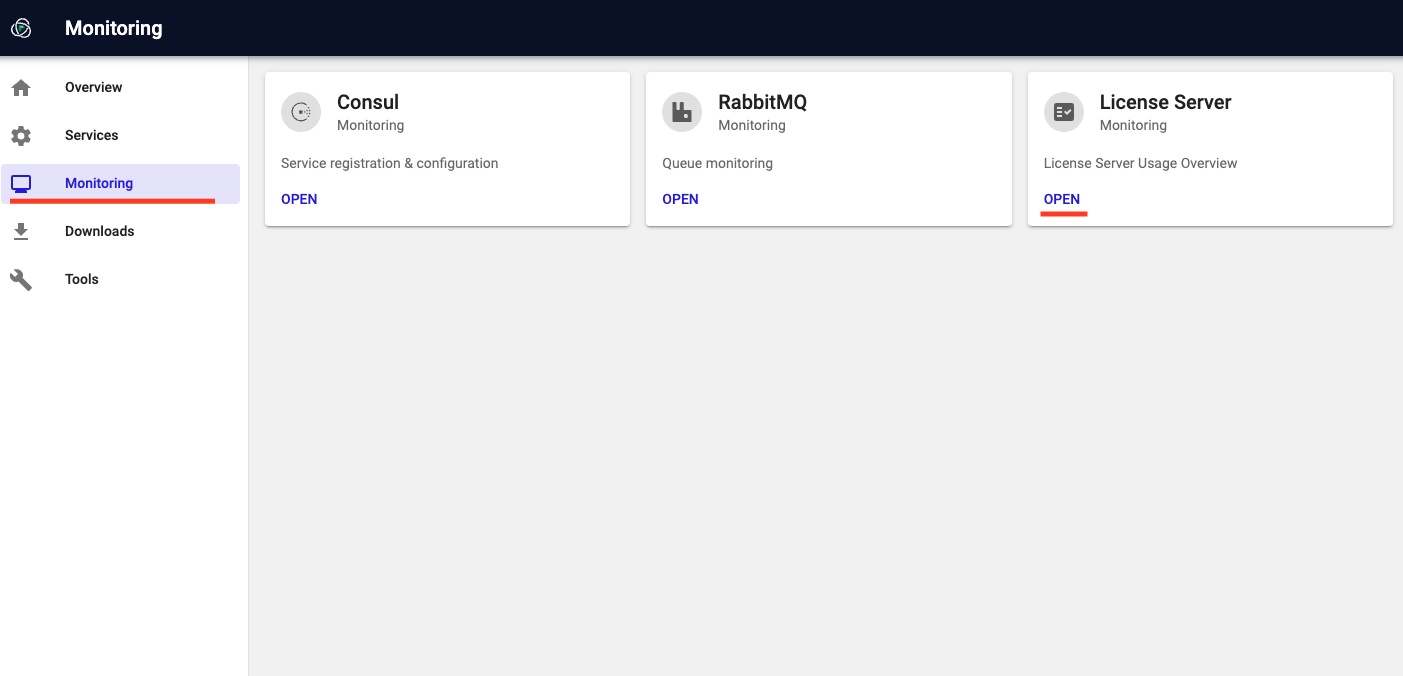
The License Server UI opens and shows an overview of the current usage statistics.
Under Export, choose the reporting period:
Last 1 month, Last 3 months (default), or Last 6 months: from the same day 1, 3, or 6 months ago up to the moment of the download.
From and To: whole days in the local time of your browser. The To day is included.
The line below the buttons summarizes the selected period.
Click Download usage as .zip.
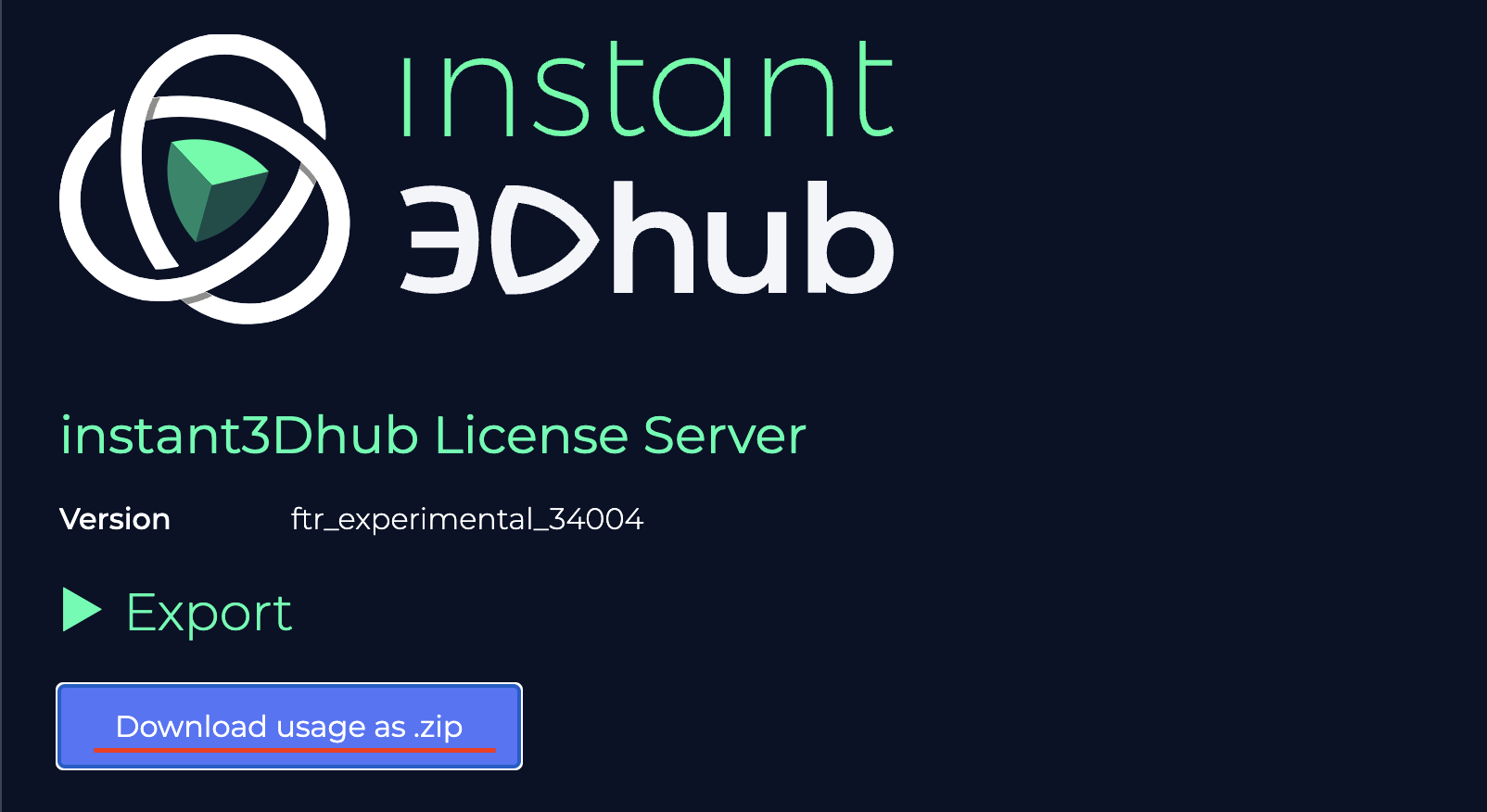
To export the same period from a script, click Copy API call. This copies
the matching curl command to the clipboard.
If automatic reporting (phone-home) is active, the License Server UI offers no reporting period. Download usage as .zip then exports the full usage history held by the License Server.
Export through the REST API#
The instant3Dhub pods need network access to the License Server. To call the API from another machine, also allow that machine to reach the License Server.
In the examples below, replace your.license.server:8200 with the address
of your License Server. The address and port (default 8200) are set in the
License Server configuration.
To export the full usage history:
curl -OJ "http://your.license.server:8200/usage/export"
-OJ saves the archive under the file name that the License Server sends,
which states the exported period. See The export file.
To export a specific period, set start and end as Unix timestamps
(seconds since 1970-01-01 00:00 UTC):
startis included,endis excluded. To export whole days, setendto midnight after the last day.Without
start, the export begins with the earliest record. Withoutend, it ends at the time of the request.An invalid value, or an
endbeforestart, returns400 Bad Request.
For example, to export July 2022 (UTC), set start to 2022-07-01 00:00 UTC
and end to 2022-08-01 00:00 UTC:
curl -OJ "http://your.license.server:8200/usage/export?start=1656633600&end=1659312000"
To compute a timestamp on Linux:
date -u -d 2022-08-01 +%s # 1659312000
The export file#
The archive is named after the exported period, in UTC:
i3dh-usage-export_<from>_<to>.zip
For example, the export of July 2022 above is named
i3dh-usage-export_20220701T000000Z_20220801T000000Z.zip. If the export has
no start, <from> is full.
The archive is signed. Submit it to Threedy unchanged. For its contents and the columns of the CSV files, see Manual usage export.
Differences before License Server 26.2#
In License Server 26.1 and earlier:
endis included. The examples above therefore also export records with a timestamp of exactly midnight after the last day.The archive is always named
i3dh-usage-export.zip. Withcurl -OJ, it is saved under that name.The License Server UI offers no reporting period. Download usage as .zip always exports the full usage history.