

Bolted-Joint Inspection#

Who this is for: Quality Assurance Engineering Inspection planner Shop-floor inspector
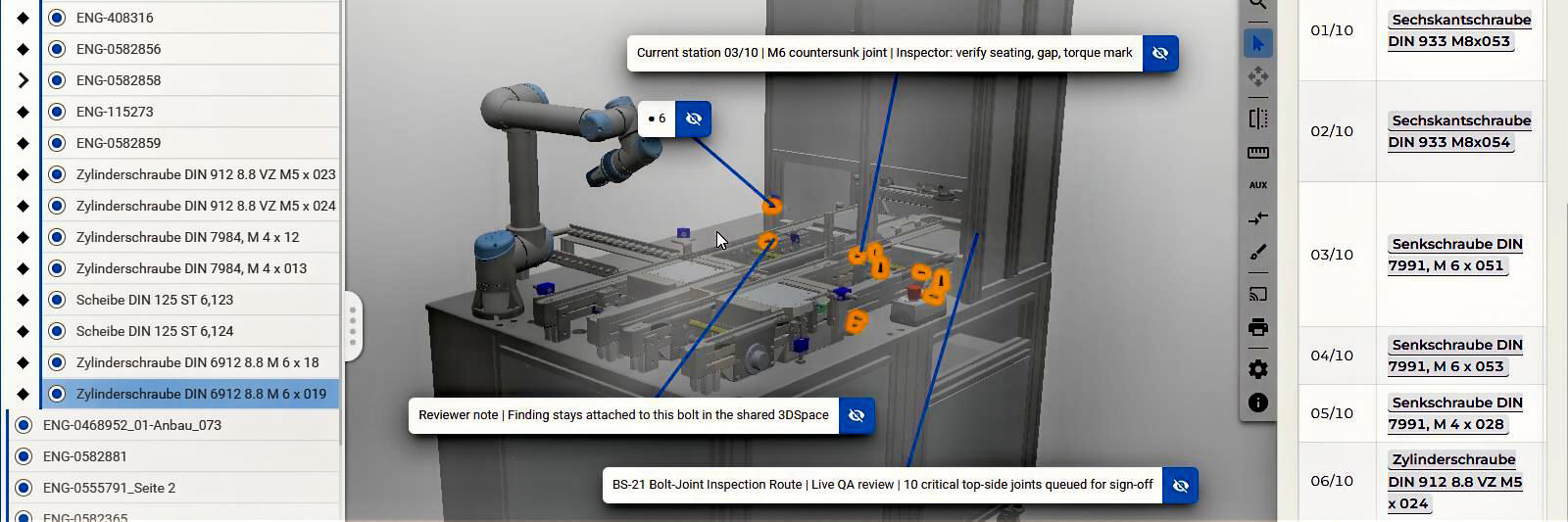
Bolted connections marked as inspection stations in a 3D assembly

An assembly holds hundreds of bolted connections, and every one has to be checked in a defined order and signed off.

Today the inspection plan lives next to the 3D data instead of inside it: a spreadsheet of joint numbers, a stack of CAD screenshots, printed sheets carried out to the machine. The inspector matches paper against part, findings come back as photos and spreadsheet rows that no longer point at any geometry, and the whole set is rebuilt by hand for the next revision.

With instant3Dhub the inspection plan lives in the 3D scene itself. The connections are found by query, each one becomes a station the inspector jumps to, and every finding and measurement stays attached to the connection it describes - no spreadsheet, no printed route, and nothing to rebuild when the assembly changes.

Key features involved, step by step#

1. Engineering releases the assembly revision

The route starts from the assembly as it sits in the source system.

Data Gateway
Data Gateway Data Gateway

Pulls the CAD data directly from the connected source system, such as Teamcenter, Windchill, or SAP.

2. Planner finds every joint

The joints come out of the 3D data, not out of a spreadsheet of joint numbers.

Search & Filter
Search and Filter Search and Filter

Queries the assembly by property, metadata, or structure and returns every bolted connection.

3. Planner builds the route

Each joint becomes a station, in the order the inspection has to follow.

Points of Interest
Points of Interest Points of Interest

Turns each connection into a marked station and guides the inspector through them in sequence.

4. Inspector records the finding

Measurements and findings stay on the connection they describe.

Single Measurement
Single Measurement Single Measurement

Measures distances and angles on the faces and edges of the connection, without leaving the viewer.

Annotation
Annotation Annotation

Attaches the finding, with notes or images, to the connection itself and links it to the QA or ticketing system.

5. QA reviews the findings

Reviewers see each finding in context, without matching photos back to geometry.

Snapshots
Snapshots Snapshots

Restores the recorded viewpoint and scene state, so the reviewer sees the finding exactly as the inspector did.

Live Collaboration
Live Collaboration Live Collaboration

Shares one 3DSpace across inspector, reviewer, and supplier, with views and state kept in sync.