
 Threedy Documentation Portal
Agentic3D#
Agentic3D lets an AI agent work with the 3D data in instant3Dhub. The agent uses tools to discover the product structure and metadata, take measurements, add clip planes and annotations, and more.
Typical uses:
Design review: find the relevant parts, measure them, check clearances against requirements, and mark issues with annotations.
Assembly and service planning: check whether a part has room to be mounted, or whether a tool reaches a bolt.
Product questions outside engineering: ask about the product structure and metadata in plain language, without a CAD tool. This use is for people in sales, service, or purchasing.
instant3Dhub provides three building blocks for these uses:
Agentic3D Chat in Horizon: the ready-to-use chat for application users based on the Agent Harness. It needs no development work.
Agent Harness: for app developers who want an agent in their own frontend. The frontend reuses the profiles, the skills, the LLM provider connection, and the MCP connections of the harness.
3DSpace MCP Server: for developers who only need the 3DSpace tools. They build their own agent on it, or connect an AI client such as Claude Code, Copilot, or Cursor.
For the setup by operators, see Configure Agentic3D.
Note
The Agentic3D Chat and the Agent Harness are experimental. Their APIs can change.
Architecture#
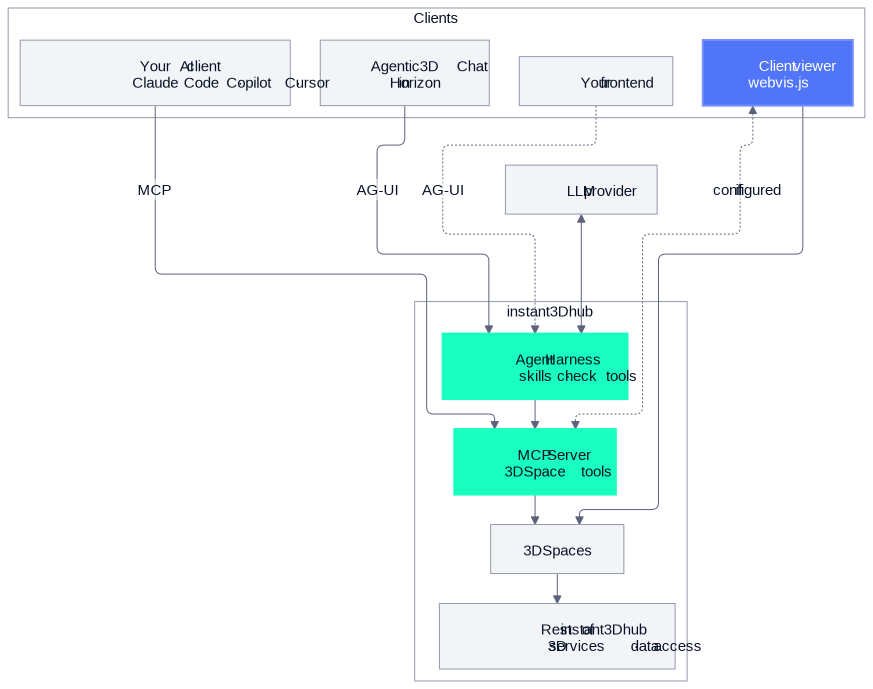
Agentic3D architecture#
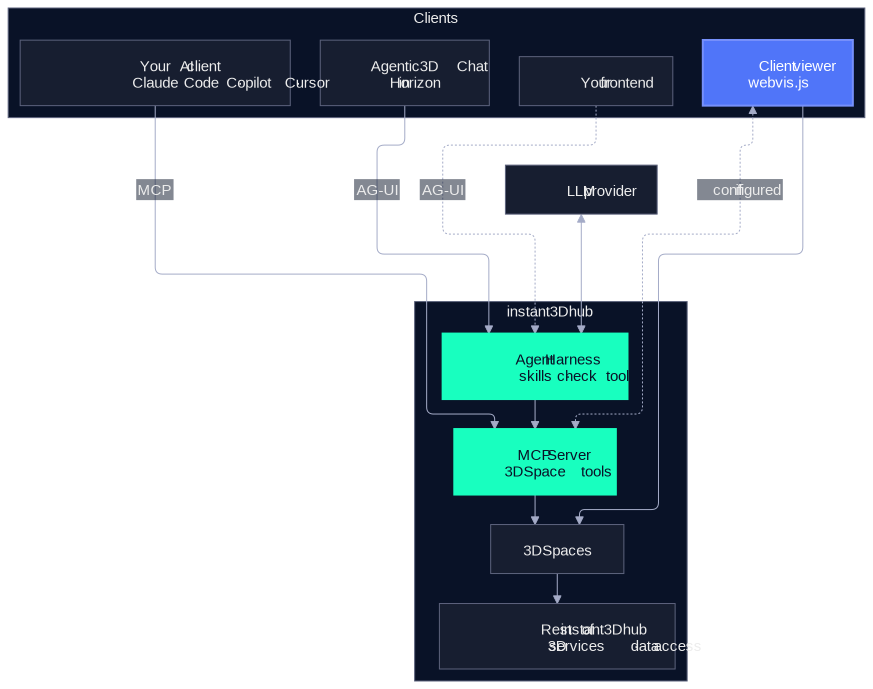
Agentic3D architecture#
The clients are outside instant3Dhub. The Agentic3D Chat in Horizon uses the Agent Harness. The Agent Harness uses the 3DSpace MCP Server for its 3D tools. Your own AI client, for example Claude Code, Copilot, or Cursor, can also use the 3DSpace MCP Server directly.
The 3DSpace MCP Server works on 3DSpaces. If configured, it also connects to the client viewer, the webvis.js viewer in which the application user sees the 3DSpace. Below these parts is the rest of instant3Dhub.
The LLM provider is outside instant3Dhub. The Agent Harness or your AI client sends it the prompts and the tool results. For details, see What data reaches the LLM.
Agentic3D Chat in Horizon#
The Agentic3D Chat in Horizon is the ready-to-use interface for Agentic3D. Application users, for example engineers, planners, and reviewers, use it on their own product data.
The chat works directly with the 3D view and the tools of instant3Dhub. The agent answers in the chat and shows the result in the 3D view. As a result, app users can combine AI and 3D for many use cases, from design review to service planning.
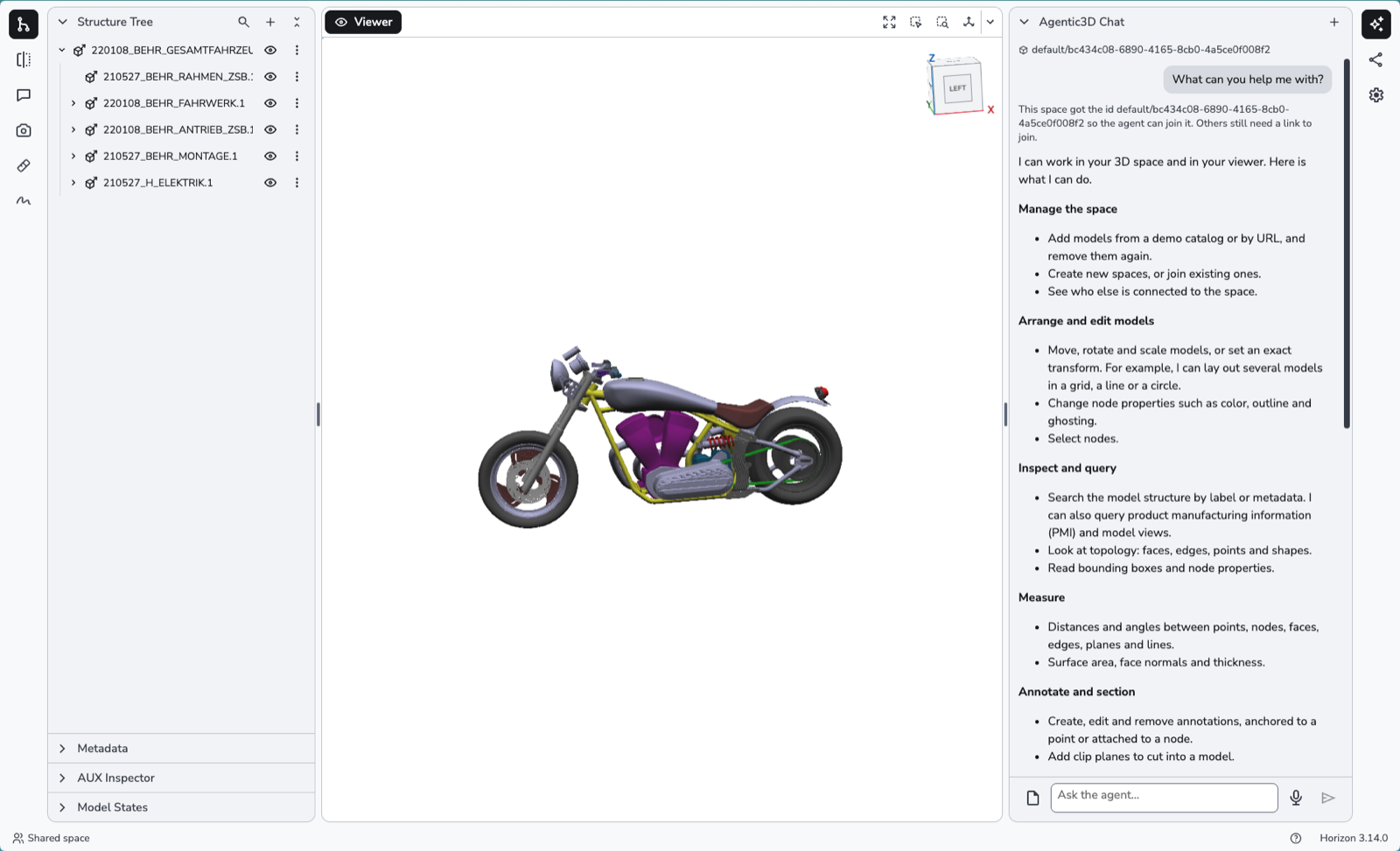
The Agentic3D Chat in Horizon#
Horizon is the reference app that ships with instant3Dhub.
Agent Harness#
The Agent Harness is the agent service of instant3Dhub. It runs the conversation, manages instructions, skills and tools, and calls the LLM provider and the MCP servers. The Agentic3D Chat in Horizon uses it. App developers connect their own frontend to it and need no agent of their own. To build such a frontend, see the tutorial Agentic3D Chat Client. Operators manage it in the Admin UI.
Building blocks#
Instructions, skills and MCP servers are shared: each profile picks the ones it uses. The harness reads the configuration when a conversation starts, so a change applies to new conversations.
Profiles#
A profile is one agent for one use case, for example design review or service planning. The app names the profile when the conversation starts, and the conversation keeps it. Without a name, the default profile is used.
Instructions#
Instructions are texts that tell the agent who it is and how to work, for example its role, its tone, or rules for measurements. A profile joins its instructions in order into its system prompt, which the LLM gets with every request. Several profiles can share an instruction.
Skills#
A skill is a set of instructions for one task, for example a clearance check or a measurement report, written in Markdown. The agent first sees only the name and description of each skill. It loads the full instructions only when the task needs them, so the system prompt stays short and many skills fit into one profile.
3DSpace MCP Server#
The harness always connects every profile to the 3DSpace MCP Server of the installation. Its tools let the agent work in 3DSpaces: load models, query the structure, measure, add clip planes and annotations, and more. The harness calls it with the token of the signed-in user, so the agent sees only the data that the user can see.
External MCP servers#
Operators can connect more MCP servers over HTTP, for example a wiki or a ticket system. For each server, they set its URL, the request headers it gets from the app, secret headers such as an API key from a Kubernetes secret, a timeout, and whether it is on. A profile picks the servers it uses. By default, an external server does not get the user’s token.
LLM providers and API types#
All profiles use one LLM endpoint of the installation, for example OpenAI, Anthropic, OpenRouter, or a LiteLLM gateway in front of several providers. Each profile can use its own model at that endpoint. The harness speaks three API types:
|
API |
|---|---|
|
OpenAI Responses API |
|
OpenAI chat completions, also offered by many other providers |
|
Anthropic Messages API |
Operators set the endpoint, API type, default model and key in the Helm values, see Configure Agentic3D.
Authentication#
Each request to the harness must carry the access token of the signed-in user, in the Authorization header as Bearer <token>. The harness checks the token against the OIDC issuer of the installation and answers a request without a valid token with HTTP 401. The check is on by default and needs the OIDC issuer in the Helm values, see Configure Agentic3D.
The harness passes the same token on to the 3DSpace MCP Server, so the agent sees only the data in 3DSpaces that the user can see. For each external MCP server, the harness settings define which headers it gets: headers of the user’s request that the harness forwards, such as Authorization with the user’s token, and secret headers, such as an API key from a Kubernetes secret, that the harness sends with every request to that server. Without these settings, the harness sends no credentials to external MCP servers.
Communication: AG-UI#
Frontends talk to the harness over the open AG-UI protocol: the app sends the conversation with POST https://<your-hub-instance>/api/agent/v1, and the harness streams the answer back as server-sent events. The events carry the text as it is written, the tool calls and their results, and the start and end of each run. Any AG-UI client can connect, for example with the AG-UI client SDK.
Generated UI: A2UI#
Besides Markdown text, the agent can show results as UI in the chat, for example clickable buttons or a form with text inputs, with A2UI. The app sends its A2UI catalog with each message: the components it can render. The agent then builds UI from those components, and the app renders it in the chat. An app that sends no catalog gets text answers only. When the user clicks a button, the app handles the action itself or sends it to the agent as the next step of the conversation. The Agentic3D Chat in Horizon supports components such as buttons, text fields, check boxes, lists, cards and tabs.
Voice#
With a voice provider, every profile also offers voice conversations over the OpenAI Realtime API. The audio goes directly between the browser and the provider over WebRTC; the API key stays on the server. The voice agent gets the same instructions, skills and tools as the text agent, and the harness runs the tool calls. The spoken words come back as text messages, so the conversation can go on in text. Operators turn on voice with the voiceProvider key in the Helm values.
3DSpace MCP Server#
The 3DSpace MCP Server gives AI clients and agents the 3DSpace tools of instant3Dhub. Developers use it without the Agent Harness, for example to build their own agent or to connect an AI client that their team already uses. The Agent Harness uses the same server.
Prerequisites#
An instant3Dhub installation and its URL
Connect your client#
The MCP endpoint of your installation is:
https://<your-hub-instance>/mcp
Replace <your-hub-instance> with the address of your installation.
Claude Code: Run this command once in your terminal. With --scope user, the server is available in all your projects.
claude mcp add --transport http --scope user 3dspace https://<your-hub-instance>/mcp
Claude Desktop: Open Settings → Connectors → Add custom connector. Enter the endpoint URL. Custom connectors connect from the cloud of Anthropic, not from your computer, so this works only if your installation is reachable from the internet. Otherwise, edit the configuration file. With mcp-remote, the connection starts on your computer:
macOS:
~/Library/Application Support/Claude/claude_desktop_config.jsonWindows:
%APPDATA%\Claude\claude_desktop_config.json
{
  "mcpServers": {
    "instant3Dhub_MCP": {
      "command": "npx",
      "args": [
        "mcp-remote",
        "https://<your-hub-instance>/mcp"
      ]
    }
  }
}
Other clients:
Client |
Documentation |
|---|---|
Codex CLI |
|
ChatGPT |
|
Cursor |
|
VS Code (GitHub Copilot) |
|
Windsurf |
|
JetBrains IDEs |
|
Continue.dev |
Authentication#
instant3Dhub does not authenticate MCP callers. It forwards their credentials to the data pools, as it does for users. Operators run the /mcp endpoint behind an authorization proxy that authenticates the agents, for example with OAuth 2.0 as the MCP authorization specification defines it. Ask your instant3Dhub operator how to sign in.
Tools#
To see all tools with their parameters and schemas, connect the MCP Inspector to your endpoint.
Available by default:
Session:
createSession,closeSession,readResult3DSpaces:
createSpace,joinSpaceModels and nodes:
addModelToSpace,removeModelFromSpace,listDemoModels,listProperties,getProperty,setProperty,getVolume,getTransform,setTransform,translateNode,rotateNode,scaleNode,xrCompareNode paths:
nodeIdToPath,nodePathToIdQuery:
querySelection:
getSelectedNodes,addToSelection,removeFromSelectionClip planes:
createClipPlane,changeClipPlane,removeClipPlaneAnnotations:
createAnnotation,getAnnotations,requestAnnotationData,changeAnnotation,removeAnnotationTopology:
getTopologyEntitiesOfNodeMeasurements:
measureBetween,measureSurfaceArea,measureNormal,measureThickness,createSingleMeasurement3DSpace members:
listSpaceMembers,bridgeToMemberView of a bridged member:
fitView,fitViewToNode,fitViewToVolume,getViewMatrix,setViewMatrix,setSceneOpacity,highlightEntity,dehighlightEntity
Available only if the operator turns them on:
requestScreenshot: takes a screenshot of the view of a bridged member.runCodeInClient: runs JavaScript code in the client of a bridged member.
Operators turn on these tools with memberScreenshots and memberCodeExecution in the values.yaml file of the Helm chart. See Configure Agentic3D.
Example prompts#
“List the demo models and load the W16 engine into a new 3DSpace.”
“Give me the top-level assembly structure as a list.”
“Find all components whose name contains ‘bracket’.”
“Measure the surface area of the selected part.”
“Set a clip plane at the midpoint of the model.”
Configure Agentic3D#
The Agent Harness and the 3DSpace MCP Server ship with instant3Dhub. Operators configure them in two steps.
Set the Helm values#
When you deploy instant3Dhub, set these values in the values.yaml file of the Helm chart:
# 3DSpace MCP Server. On by default.
spaceMcp:
  enabled: true

# Opt-in MCP tools. Off by default.
spaceCollaboration:
  memberScreenshots:     # requestScreenshot
    enabled: true
  memberCodeExecution:   # runCodeInClient
    enabled: true

# Agent Harness. Off by default. Needs the 3DSpace MCP Server, an LLM provider,
# and the OIDC issuer (auth.caching.oidcProviderEndpoint).
experimental:
  agentHarnessService:
    enabled: true
    authEnabled: true     # checks the users' tokens. On by default.
    llmProvider:
      endpoint: https://<your-llm-endpoint>/v1
      defaultModel: <model-id>
      apiType: responses   # responses, chat, or messages
      apiKey:
        secretKeyRef:
          name: <secret-name>
          key: <secret-key>
    # Optional. Without an API key, the agent offers no voice.
    voiceProvider:
      apiKey:
        secretKeyRef:
          name: <secret-name>
          key: <secret-key>
The LLM provider is an endpoint with an OpenAI or Anthropic API, for example a LiteLLM gateway. apiType sets its API: responses (OpenAI Responses API), chat (chat completions), or messages (Anthropic Messages API). By default, the key goes in the x-api-key header for messages and as a bearer token for the other APIs. To change this, set authHeader. The optional voice provider is an OpenAI Realtime API endpoint for voice conversations. The API keys come from existing Kubernetes secrets.
authEnabled needs the OIDC issuer of your installation in auth.caching.oidcProviderEndpoint. Without it, the Helm render fails. Set authEnabled: false only for tests: then the harness checks no tokens and lets every request through.
For all values and their descriptions, see the comments in the values.yaml file. For the installation with Helm, see instant3Dhub on Kubernetes.
Caution
Run the /mcp endpoint only behind an authorization proxy that authenticates the agents. instant3Dhub does not authenticate MCP callers.
Turn on the opt-in tools only if your use cases need them. A screenshot shows all that the member sees, also models that the agent has no access to. The JavaScript code runs with all the rights of the application of the member.
Manage skills and profiles#
After the deployment, open the Admin UI at https://<your-hub-instance>/admin. There, manage the profiles, instructions, skills and external MCP servers of the Agent Harness, see Building blocks. instant3Dhub includes preconfigured skills that are useful for any use case. For the Admin UI, see Admin UI.
What data reaches the LLM#
The LLM never gets the source files of your models, for example the CAD files. It gets pieces of information from the tools and from the conversation. Which pieces depends on the configuration of your installation.
The data goes to the LLM provider that your operator sets, see Configure Agentic3D. With your own AI client, it goes to the LLM provider of that client.
Depending on the configuration, the LLM gets:
Always: the messages of the user, the descriptions of the tools, and the results of the MCP tools
With the opt-in tools: screenshots of a view and the results of JavaScript code
With the Agent Harness: the system prompt and the skills of the profile, the results of other MCP servers that the operator connects, and what the app sends with each message: the earlier messages of the conversation, context such as the 3DSpace and the UI catalog of the app, and the descriptions of the tools of the app
With the Agentic3D Chat: the files that the user attaches, for example PDFs and images.
With voice: if the operator sets a voice provider, that provider also gets the conversation: the voice of the user, the earlier messages, the system prompt and the skills, the descriptions of the tools, and the tool results
The MCP tools return:
Product structure: node IDs, node paths, and query results
Properties: property names and values, for example visibility and metadata
Geometry values: bounding boxes, transform matrices, distances, angles, points, surface areas, normals, and thicknesses
Topology: handles of faces, edges, and other topology entities
Annotations: text, anchor positions, and connected nodes
3DSpaces: IDs and links of 3DSpaces, and the members of a 3DSpace with their names and roles
Views of bridged members: camera view matrices
If your models contain classified metadata, speak with your security team before you use Agentic3D.